

How to Edit YouTube Videos for Better Engagement and Audience Growth
Creating engaging YouTube videos takes more than recording good footage. The way you edit YouTube videos affects how easily viewers understand your message and whether they continue watching.
Clear audio, smooth transitions, readable captions, and well-organized scenes can make videos more enjoyable. Good editing also helps creators maintain a consistent style across their channels.
Today, AI-powered editing tools help creators organize footage, remove unwanted sections, add captions, and prepare videos for YouTube Shorts.
This guide explains practical editing techniques, introduces useful YouTube editing tools, and shares ways to improve engagement and audience growth.
Why Video Editing Matters for YouTube Engagement
Good editing makes content easier to follow while removing unnecessary distractions. Whether you’re creating tutorials, interviews, product reviews, or marketing videos, the editing process can improve the viewing experience.
Some important benefits include:
- Better viewer retention: Removing long pauses helps maintain a steady pace.
- Clear communication: Captions and graphics make information easier to understand.
- Improved audio: Balanced sound helps viewers focus on your message.
- Consistent branding: Similar fonts, colors, and editing styles make your channel recognizable.
- More content opportunities: Longer videos can become Shorts and promotional clips.
These practices also support a broader social media marketing strategy by helping creators share useful content across multiple platforms.
How to Edit YouTube Videos for Better Engagement
1. Start With an Interesting Opening
The first few seconds should give viewers a reason to continue watching.
Introduce the topic, explain what viewers will learn, or show an interesting moment from the video. Avoid lengthy introductions that delay the main content.
2. Remove Unnecessary Footage
Review recordings and remove repeated explanations, long pauses, and unrelated scenes.
Keep the important information while maintaining a natural flow. This makes tutorials, interviews, and educational videos easier to follow.
3. Add Captions and Useful Text
Captions help viewers understand spoken content, especially when watching without sound.
Use short text overlays to highlight important information. Choose readable fonts and avoid placing too much text on the screen.
4. Improve Audio and Visual Quality
Reduce background noise, balance music levels, and make speech easy to hear.
Adjust lighting, colors, and framing where needed. Consistent visual quality helps videos look more polished.
5. Add Relevant B-Roll
B-roll adds visual variety while supporting the main message.
Include product demonstrations, screen recordings, close-ups, or relevant footage. Use simple transitions so viewers remain focused on the content.
6. Create YouTube Shorts
Select useful moments from longer recordings and turn them into short vertical videos.
Adjust the framing, add captions, and make sure each Short communicates a complete idea.
3 Useful Tools for Editing YouTube Videos
Choosing the right editor depends on your content type, creative needs, and editing workflow.
1. Invideo
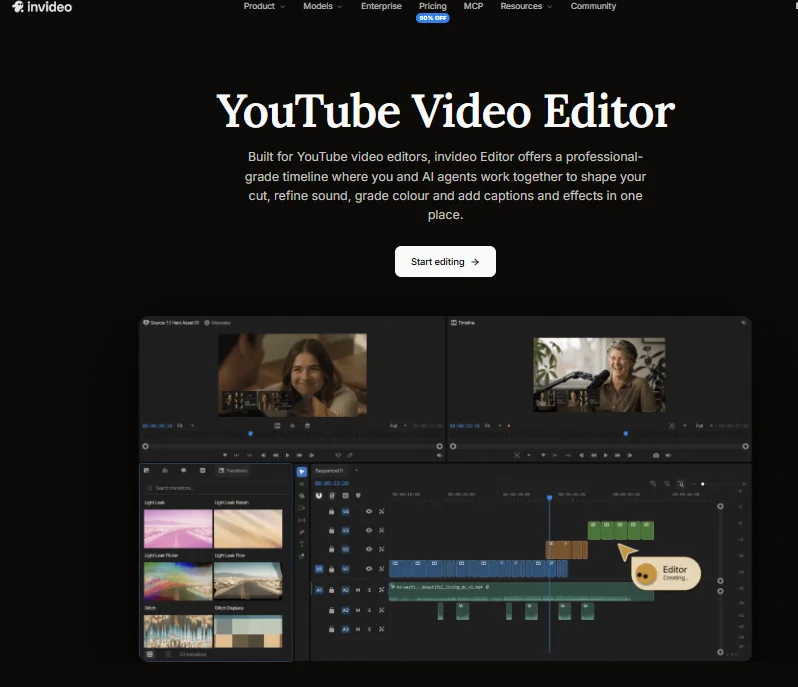
Invideo Editor is a browser-based video editing platform that combines professional timeline controls with AI agents. It helps YouTube creators organize footage, build rough cuts, refine videos, and prepare content for publishing without switching between several editing applications.
With invideo’s youtube video editor, users can upload footage, B-roll, music, graphics, and voiceovers to a multitrack timeline. They can trim clips manually or remove sentences through transcript-based editing. Other tools include cropping, resizing, speed adjustments, stabilization, automatic captions, AI voiceovers, and background replacement without a green screen.
Its AI agents can organize footage by dialogue, actors, props, and camera angles. They can identify useful takes, remove filler words and silences, and assemble rough cuts. AI can also match edits to music beats or follow the pacing and structure of a reference video.
Invideo allows users to connect external AI assistants directly to the editing timeline. For detailed editing, it offers keyframe animation, transitions, color grading with curves and LUTs, and multitrack audio mixing.
Teams can work together in real time, share review links, leave frame-accurate comments, and continue projects across computers, tablets, and phones.
Creators can also reframe videos into vertical YouTube Shorts, create chapter markers, and export MP4 files from 720p to 4K. The platform supports 24, 30, and 60 fps, bitrate controls, and WAV, AAC, or Opus audio exports. Editing work can continue in Premiere Pro, Final Cut Pro, or DaVinci Resolve.
The landing page also advertises free 1080p exports without a watermark.
Key features:
- Multitrack timeline with AI-assisted and manual editing.
- AI footage logging, rough cuts, beat matching, and reference-based editing.
- Automatic captions, voiceovers, stabilization, and background replacement.
- Keyframes, transitions, advanced color grading, and audio mixing.
- Real-time collaboration and frame-accurate review links.
- YouTube Shorts, chapter markers, and up to 4K exports.
- External AI agent connections and professional editing handoffs.
Best for: YouTube creators, businesses, and marketing teams wanting AI assistance alongside detailed editing controls.
2. Descript
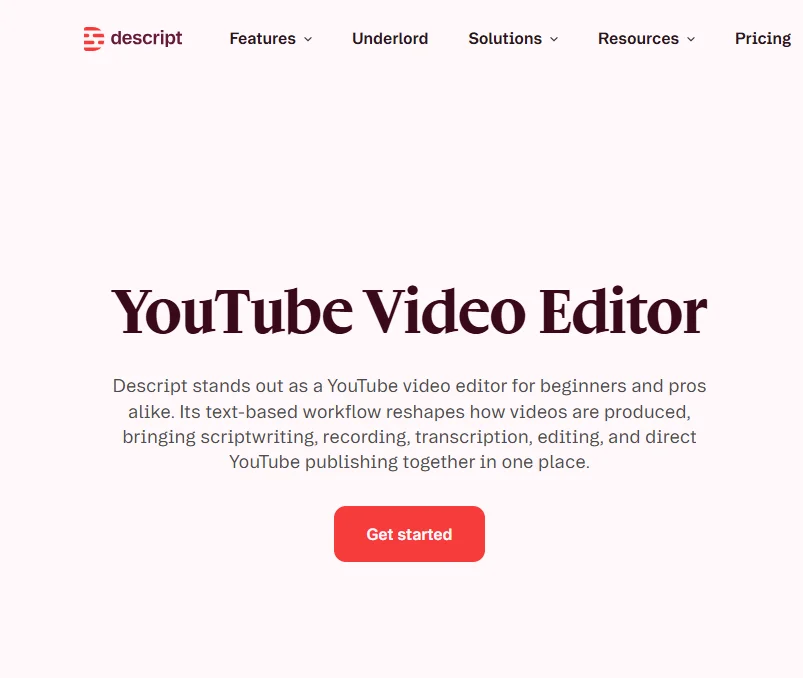
Descript is an AI-powered video and audio editing platform that allows creators to edit recordings through text. It works particularly well for YouTube tutorials, interviews, podcasts, and educational videos where spoken content is the main focus.
After uploading footage, Descript automatically creates a transcript. Users can remove unwanted sentences from the text, and the corresponding sections are removed from the video.
This approach helps creators edit repeated explanations, mistakes, and unnecessary pauses without manually finding every cut on the timeline.
Descript also provides AI tools for removing filler words, improving audio clarity, and correcting eye contact. Its Studio Sound feature helps clean up recordings, while its visual editing tools support talking-head videos and presentations.
The platform includes automatic captions, screen recording, video layouts, and tools for combining images, text, and footage.
Creators can also generate shorter clips from longer recordings, prepare YouTube descriptions, and collaborate with team members through shared projects and comments.
These features make Descript useful for creators who regularly work with interviews, tutorials, and voice-led content.
Key features:
- Text-based video editing with automatic transcription.
- Filler-word removal and audio enhancement.
- Automatic captions and subtitles.
- Screen recording and video layouts.
- AI eye-contact correction and visual improvements.
- Short clip generation and YouTube content tools.
- Team collaboration and project reviews.
Best for: Educators, interviewers, podcasters, and YouTube creators producing speech-focused videos.
3. CapCut
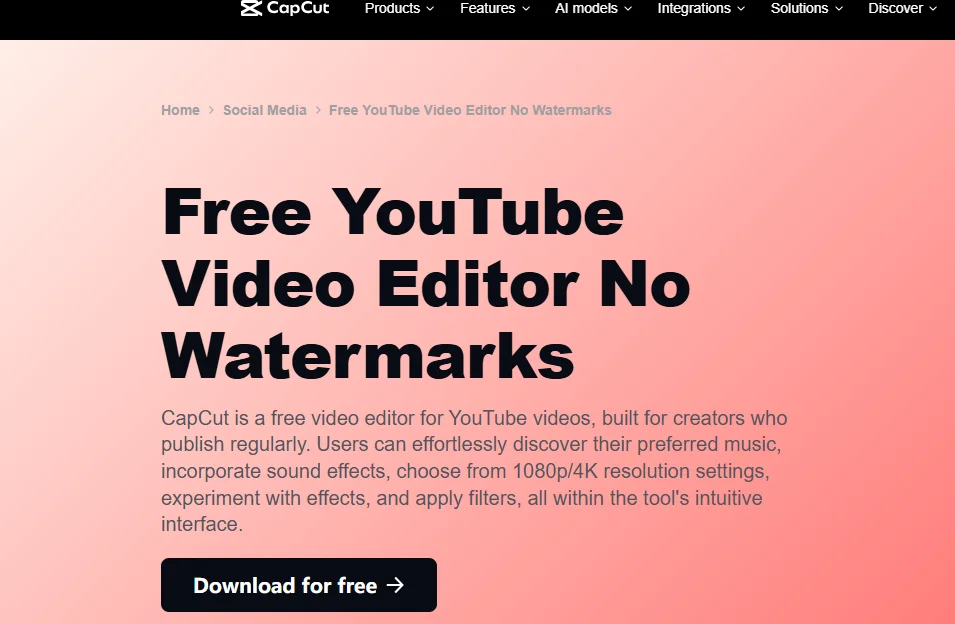
CapCut is a video editing platform that supports online, desktop, and mobile editing. It provides manual editing features alongside AI-powered tools, making it useful for YouTube videos, Shorts, and social media content.
Users can upload footage and organize clips on a timeline. The editor supports trimming, splitting, cropping, transitions, text overlays, music, and visual effects.
CapCut also offers automatic captions that turn spoken audio into subtitles. Creators can review the text and adjust caption styles to match their videos.
Its AI features include background removal, text-to-speech, voice enhancement, and tools for improving video quality.
Creators can combine footage with music, effects, and graphics to produce tutorials, promotional clips, and entertainment videos.
CapCut also supports video resizing, making it easier to prepare horizontal YouTube videos and vertical Shorts from existing footage.
Its availability across different devices is convenient for creators who want flexible editing options.
Key features:
- Timeline editing with trimming and clip arrangement.
- Automatic captions and subtitle customization.
- Video transitions, filters, and visual effects.
- Text-to-speech and audio enhancement.
- Background removal and video improvement tools.
- Video resizing for YouTube and Shorts.
- Online, desktop, and mobile editing options.
Best for: Beginners, social media creators, and small businesses preparing YouTube videos and short-form content.
Tips to Improve YouTube Audience Growth
Maintain a Consistent Upload Schedule
Choose a publishing schedule you can manage. Regular uploads help viewers know when to expect new content.
Create Clear Titles and Thumbnails
Use titles that explain the video’s value. Thumbnails should be easy to understand and accurately represent the content.
Review Audience Retention
YouTube Analytics shows how viewers interact with your videos. Check where people stop watching or replay sections to improve future editing decisions.
Repurpose Your Best Content
Turn longer tutorials, interviews, and demonstrations into shorter clips for other platforms.
AI tools can simplify this process, supporting a wider AI-powered digital marketing strategy through content creation and repurposing.
Common YouTube Editing Mistakes to Avoid
Even experienced creators can make mistakes that affect video quality.
- Long introductions: Introduce the main topic quickly.
- Poor audio balance: Keep speech clear and background music at a suitable level.
- Too many effects: Choose transitions that support the content.
- Unreadable captions: Use clear fonts and appropriate contrast.
- Inconsistent pacing: Give viewers enough time to understand important points.
- Skipping final reviews: Check captions, audio, and video quality before publishing.
Businesses can also connect YouTube videos with their broader digital marketing efforts to help build brand awareness and reach potential customers.
Conclusion
Editing YouTube videos effectively means creating content that is clear, engaging, and easy to watch. Removing unnecessary footage, improving audio, adding captions, and maintaining consistent pacing can improve the viewing experience.
Tools such as invideo, Descript, and CapCut provide different ways to simplify video editing, from AI-assisted rough cuts to transcript-based editing and short-form content creation.
By combining useful editing techniques with a clear content strategy, creators can produce better YouTube videos and build stronger relationships with their audiences.
Frequently Asked Questions
1. How can I make my YouTube videos more engaging?
Start with an interesting opening, remove unnecessary footage, add readable captions, and improve audio quality. Relevant visuals and steady pacing can also help viewers follow your content.
2. Which video editing tool is suitable for YouTube creators?
Invideo, Descript, and CapCut are useful options. Invideo combines AI agents with timeline editing, Descript focuses on text-based editing, and CapCut offers tools for YouTube videos and Shorts.
3. Does video editing help increase YouTube views?
Good editing can improve video quality and encourage viewers to watch longer. However, views also depend on content relevance, titles, thumbnails, and audience interest.
4. Can I turn long YouTube videos into Shorts?
Yes. You can select highlights from longer videos, resize them vertically, add captions, and export them as Shorts. Many video editing tools support this workflow.